
The second installment of our VCF 9.0.1 Deployment Series focuses on the crucial steps following the successful deployment of the VCF Installer OVA—namely, the configuration of the VCF Installer appliance and the necessary process of downloading the software bundles.
In Part 1 of this series, we covered the initial preparation and deployment of the VCF Installer appliance itself. Now, we transition to preparing the installer to perform its primary function: downloading and staging the necessary binaries for the VMware Cloud Foundation deployment.
—–Accessing the VCF Installer Web Interface
Once the VCF Installer OVA is successfully powered on and has obtained an IP address, the configuration process begins by accessing its web-based user interface:
- Launch Web Browser: Open your preferred web browser (e.g., Chrome, Firefox, Edge).
- Navigate to Installer: Enter the IP address or FQDN (Fully Qualified Domain Name) of the VCF Installer appliance into the address bar. This will direct you to the VCF Installer login page.
- Login Credentials:
- User Name: admin@local
- Password: Use the administrative password that you defined during the initial OVA deployment phase.
—–Configuring Depot Settings and Binary Management
The core of preparing the VCF Installer for deployment is setting up its connection to the software depot to download the required components.
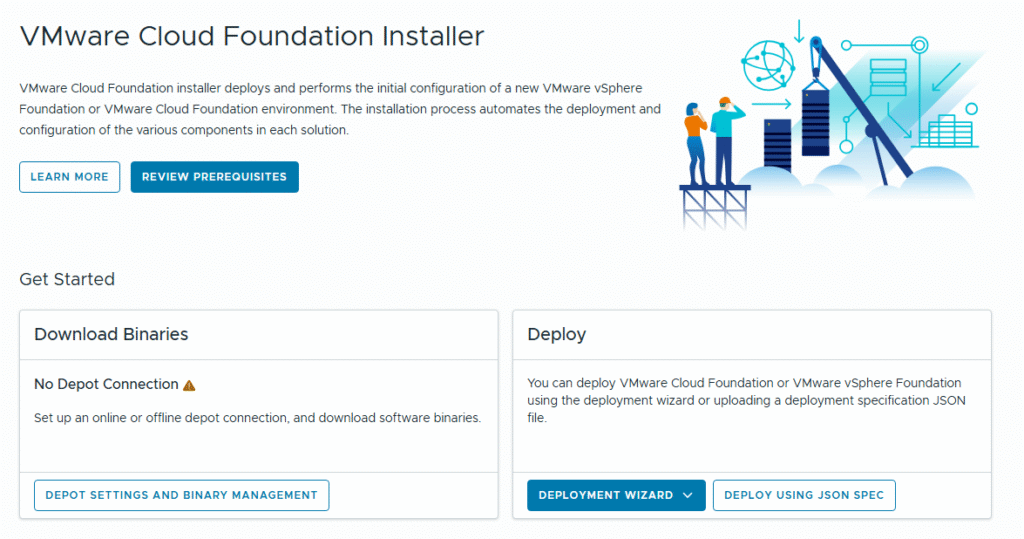
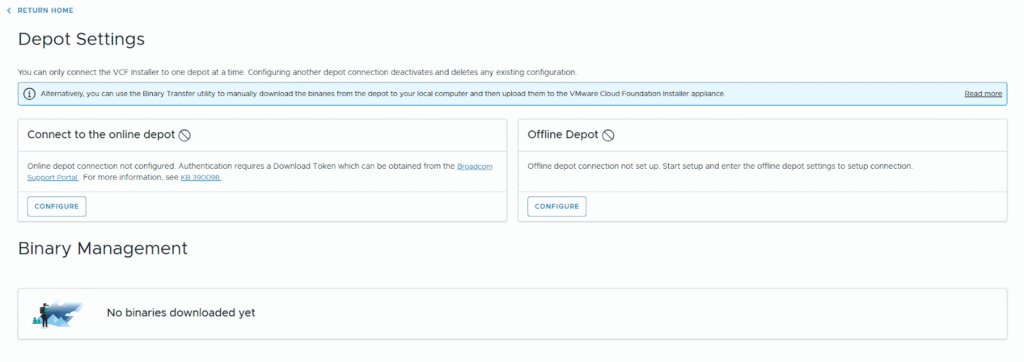
- Access Depot Settings: Upon successfully logging in, navigate from the Home page to the Depot Settings and Binary Management section. This area manages how the installer connects to the Broadcom/VMware repository and downloads the necessary software bundles.
—–Connecting to the Software Depot (Online and Offline)
The VCF Installer provides flexibility in how it accesses the software binaries, catering to environments with or without direct internet connectivity.Option A: Online Depot Configuration (Internet Access Available)
If your VCF Installer appliance has direct or proxied access to the public internet, you can configure it to connect to the official Broadcom online software depot.
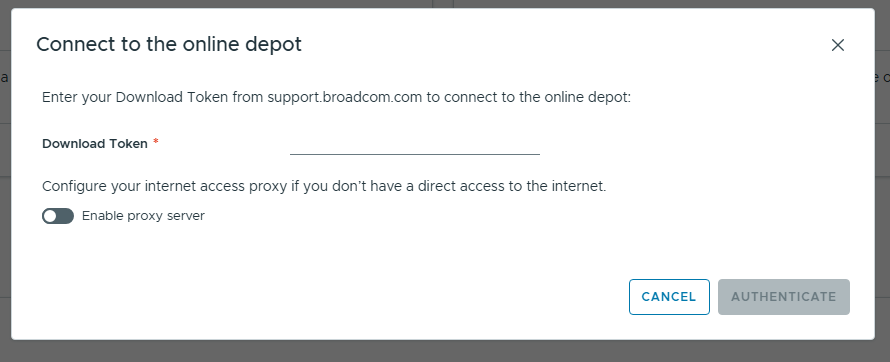
- Configure Online Depot: Under the Online depot section, click on Configure.
- Enter Download Token: You will be prompted to enter a download token. This token is a security credential required to authorize the download of software bundles.
- Token Generation: The token must be generated from the support.broadcom.portal site.
- Reference: For detailed instructions, refer to the official documentation on Generating a Download Token.
Option B: Offline Depot Configuration (No Internet Access)
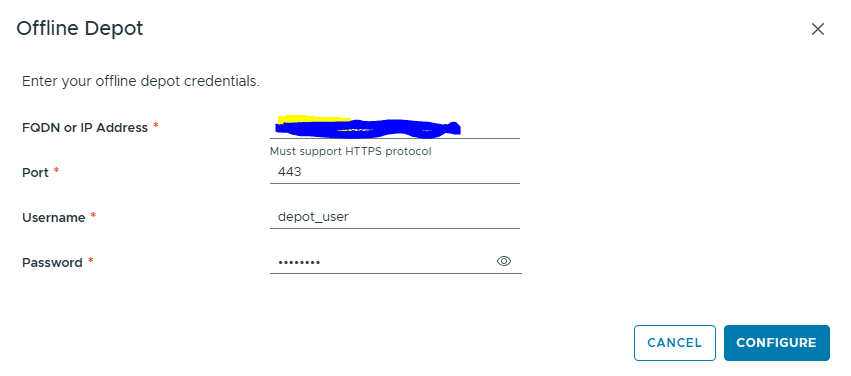
For secure environments that strictly prohibit direct internet access, you must host the software bundles locally using an offline web server. The VCF Installer can then connect to this internal server.
- Host Offline Web Server: You need to set up a separate web server within your environment and populate it with the necessary VCF bundles.
- Connect Installer: Configure the VCF Installer to connect to this internal offline web server as its depot source.
- Reference: Comprehensive details on this process are available in the documentation: Set Up an Offline Depot Web Server for VMware Cloud Foundation.
—–Downloading the VCF Software Binaries
Once the depot connection is successfully established—whether online or offline—the status will be confirmed on the configuration page, appearing similar to the illustration below:
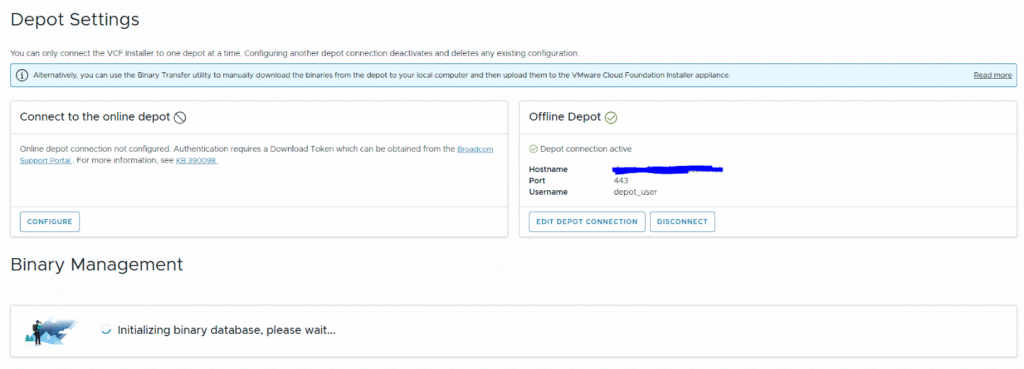
With the connection active, you can now proceed to download the VCF deployment binaries:
- View Available Binaries: You will see a list of all available software binaries (bundles) that the VCF Installer can download from the connected depot.
- Select Version: Currently, the system displays different versions available for deployment, such as 9.0 and 9.0.1. You must select the specific version you intend to deploy (in this series, 9.0.1).
- Select Necessary Binaries: Carefully select all necessary binaries for the version you plan to deploy. The installer typically requires base images for ESXi, vCenter Server, NSX-T/V, and SDDC Manager.
- Initiate Download: Click on the Download button to start transferring the selected bundles to the VCF Installer appliance’s local storage.
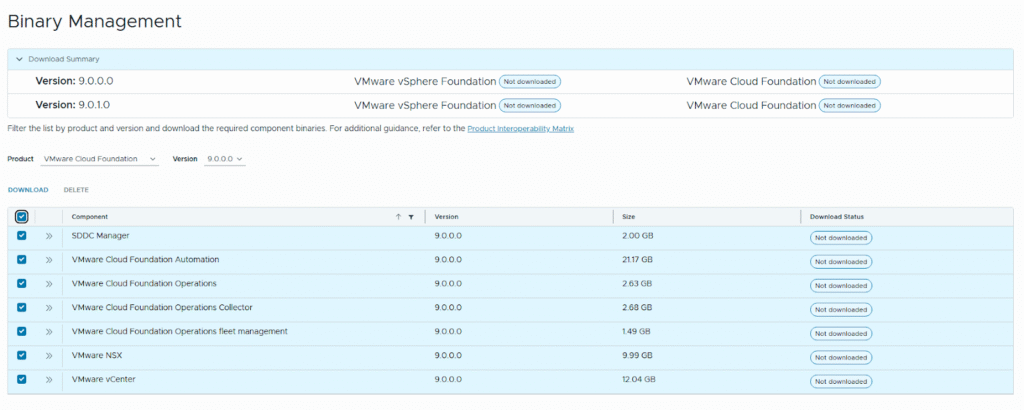
The downloading process may take a significant amount of time, depending on your network bandwidth and the size of the selected bundles. Once the download is complete, the VCF Installer is fully prepared, and you can proceed to the next stage: the actual deployment configuration.
One thought on “VCF 9.0.1 Deployment Series – Part 2: VCF Installer Configuration and Bundle Download”