
VMware Cloud Foundation (VCF) 9.0 introduces the VCF Identity Broker (vIDB) as a central authentication solution, replacing the legacy vIDM (Workspace ONE Access) for a unified Single Sign-On (SSO) experience across components like vCenter, NSX, and VCF Operations. This shift aims to standardize authentication, reduce complexity, and improve security within your private cloud environment.
The deployment process is managed from the new VCF Operations interface and typically involves three phases: deployment, component configuration, and role assignment.
Understanding Deployment Modes
Before starting, you need to decide on the deployment mode:
- Embedded Mode: Runs within the management domain’s vCenter Server. This is suitable for smaller VCF deployments with a single instance.
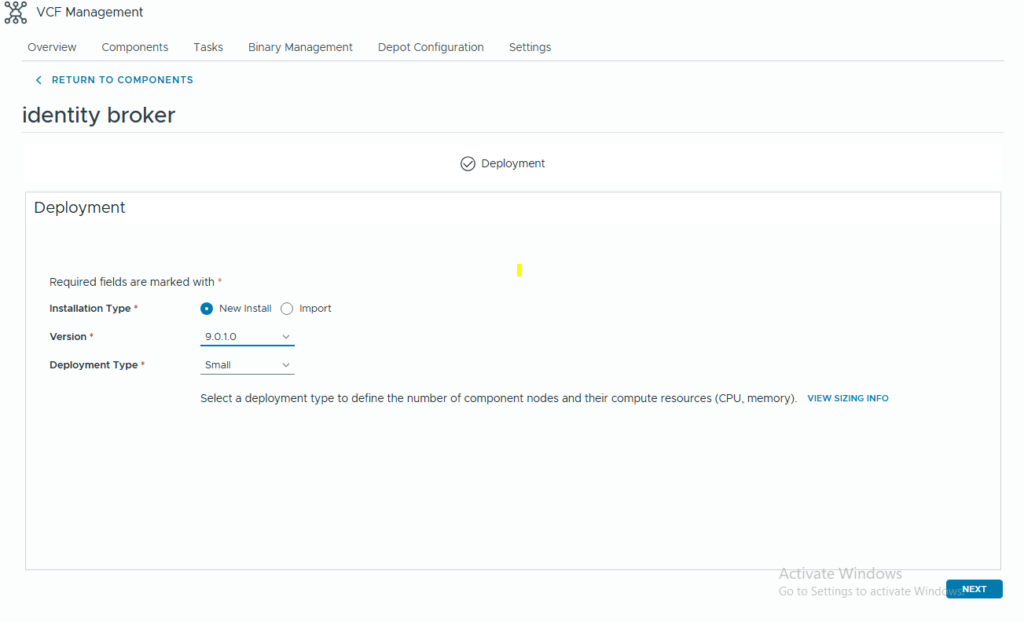
- Appliance Mode: Deploys as a separate, highly available cluster of three virtual machines. This mode is recommended for large-scale environments or those managing multiple VCF instances (up to five) with a single identity broker for increased resilience. The screenshots provided appear to illustrate the appliance mode deployment.
Step-by-Step Deployment (Appliance Mode)
The following steps outline the process as seen in the VCF Operations interface:
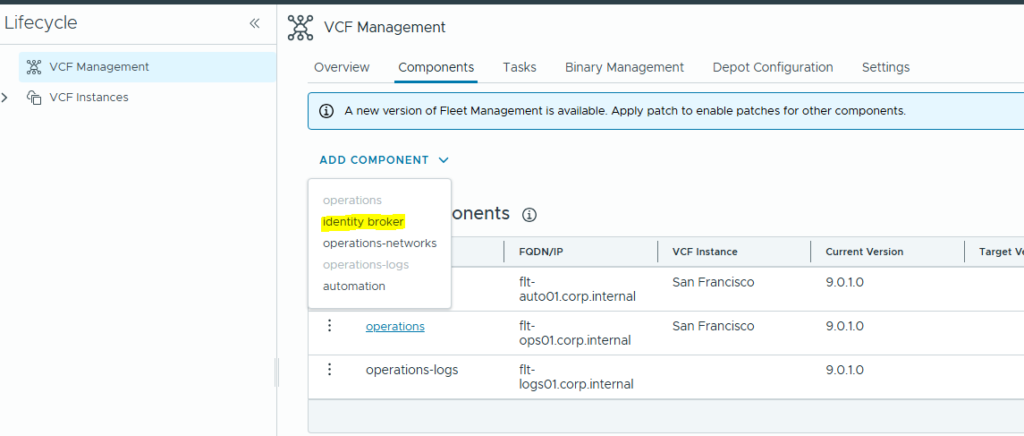
1. Access the Deployment Interface
Navigate to Fleet Management > Identity & Access in the VCF Operations UI. You will be guided through a wizard starting with choosing a Deployment Type (New Install/Import).
2. Configure Certificates
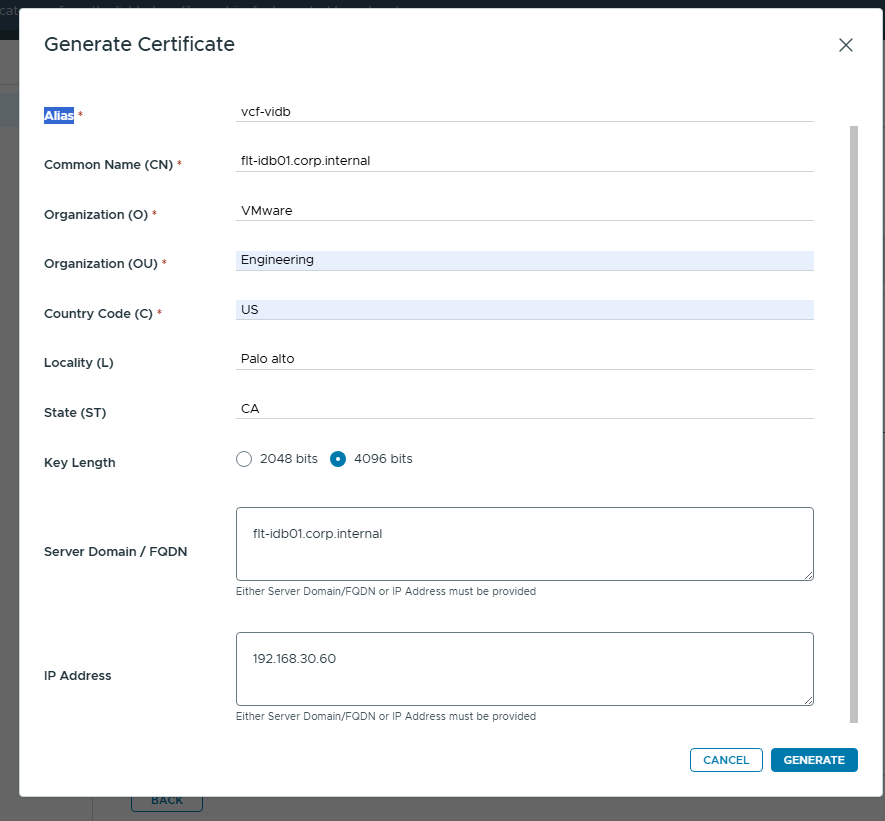
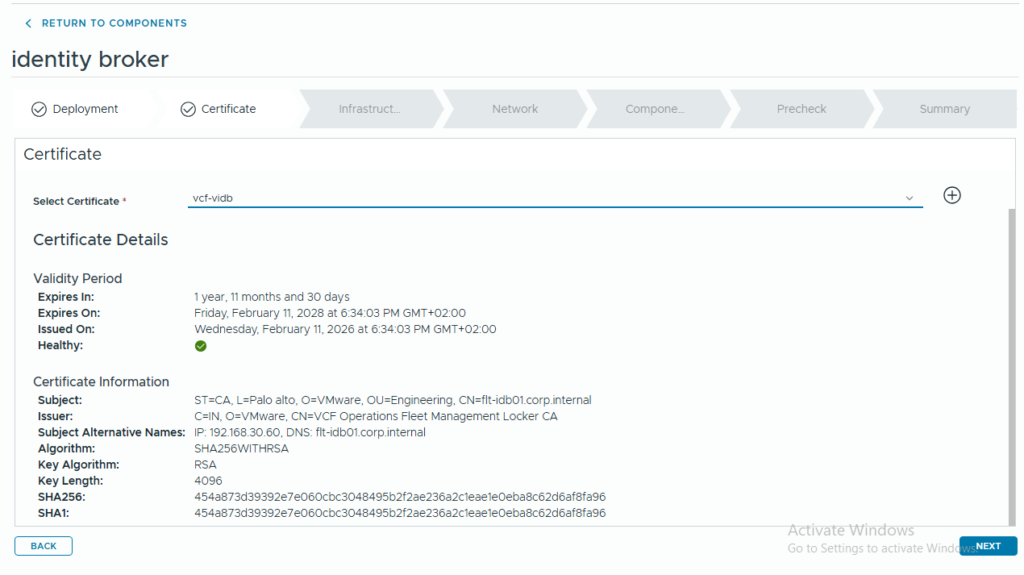
The process involves generating or selecting an SSL certificate for the vIDB appliance
- Specify certificate details like Common Name (CN), Organization, Locality, and Country code.
- Choose a Key Length (e.g., 4096 bits for enhanced security)
- Provide the Server Domain/FQDN (e.g., flt-idb01.corp.internal) and IP Address.The UI displays certificate validity information, including issue and expiration dates .
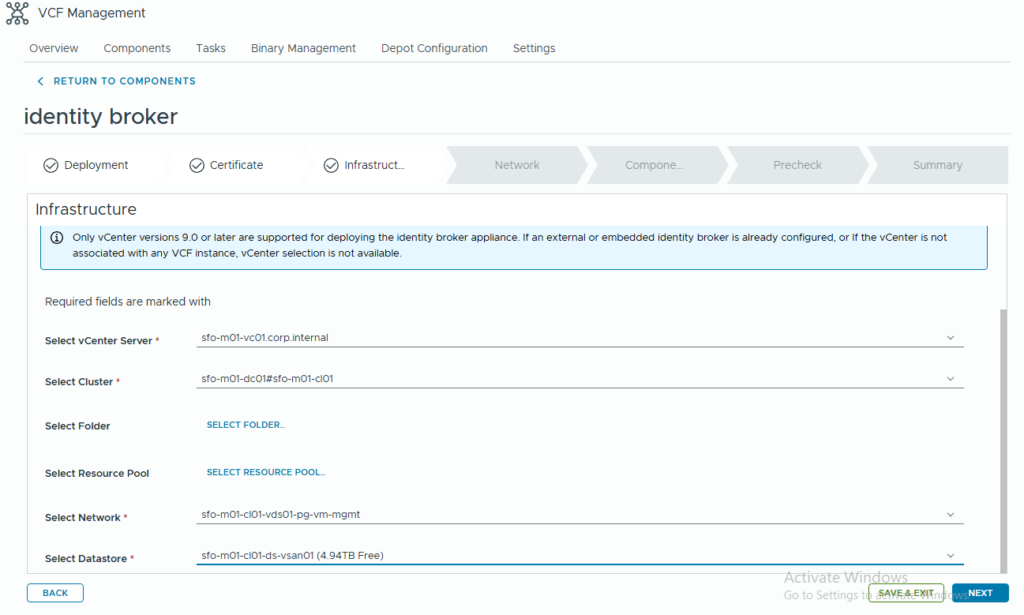
3. Define Infrastructure Resources
Select the underlying vCenter Server, cluster, folder, resource pool, and datastore where the vIDB appliances will be deployed . VCF 9.0 supports only vCenter versions 9.0 or later for this deployment.
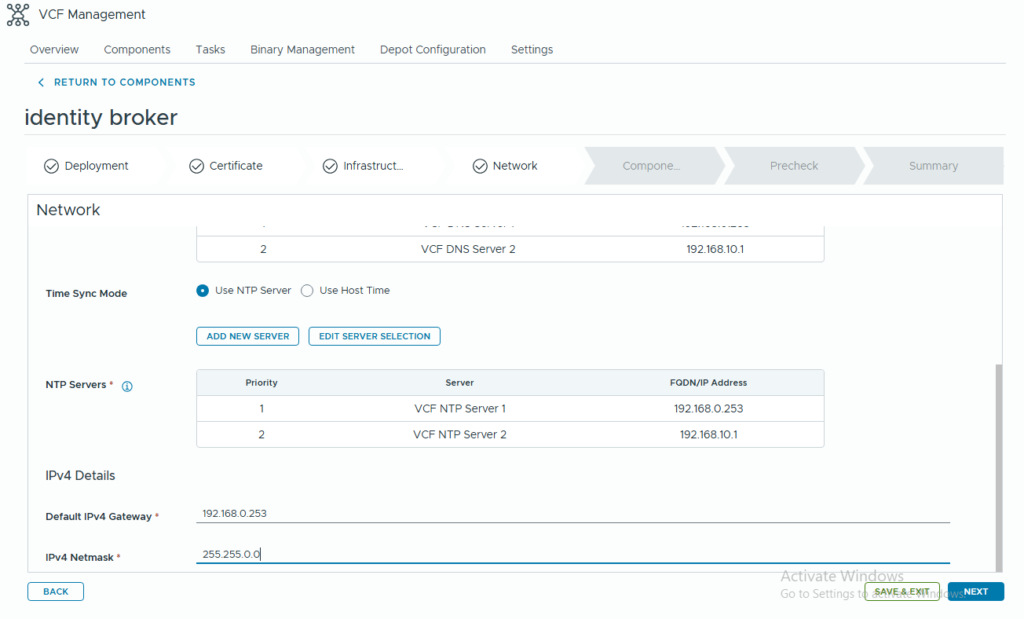
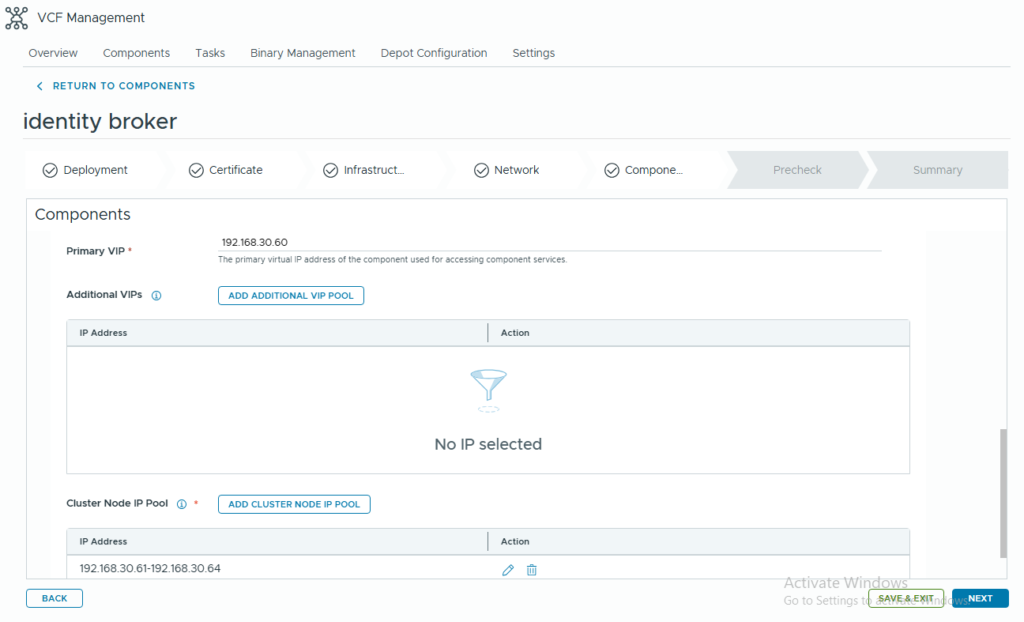
4. Configure Networking
Specify the network settings for the vIDB appliances, including the Default IPv4 Gateway, IPv4 Netmask, VCF DNS servers, and NTP servers. You also define the Primary VIP (Virtual IP) address used to access the vIDB services and a range of IP addresses for the cluster node IP pool to ensure high availability. You need four IPs for the pool.
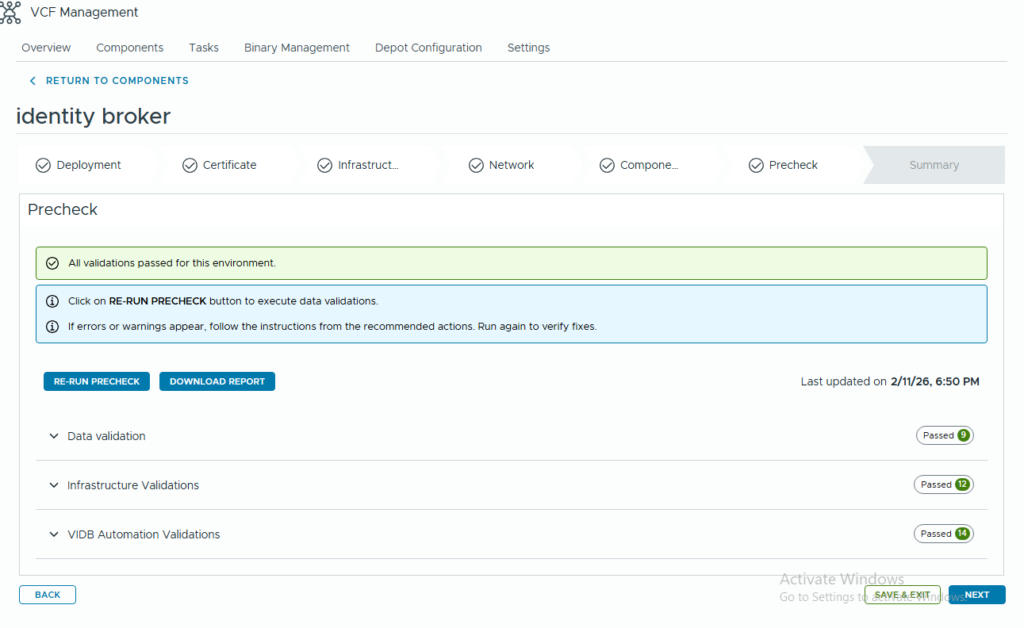
5. Run Prechecks and Deploy
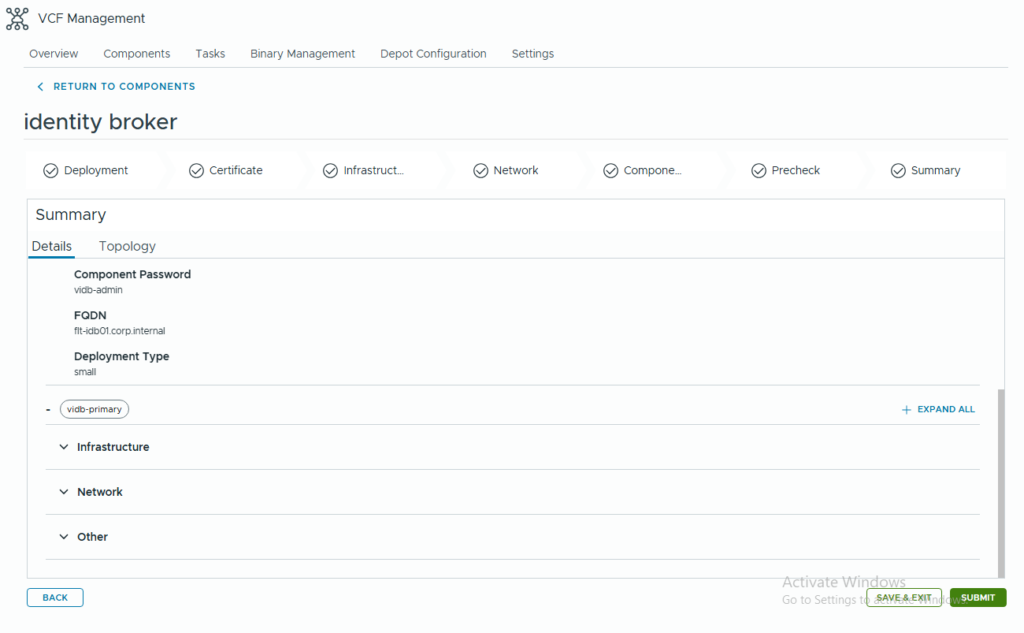
The system runs a series of validations (data, infrastructure, automation) to ensure the environment is ready for deployment. Once all prechecks pass, you can proceed to the final Summary and initiate the deployment.
In the next post, we will talk about Configuring VIDB for VCF SSO.