In this post we are going to see how to do custom SRM setup. This is mostly needed when you are trying to setup Shared recovery model. Here am going to share step by step guide for the same.
1. Once your windows server is ready download your SRM installation file from vmware downloads portal.
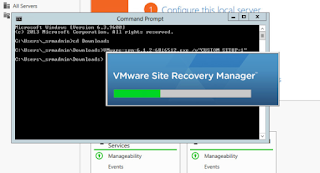
2. Run the command prompt as administrator.
3. Change the directory to point your exe file and run below command.
2. Run the command prompt as administrator.
3. Change the directory to point your exe file and run below command.
<srmversion.exe> /v”CUSTOM_SETUP=1
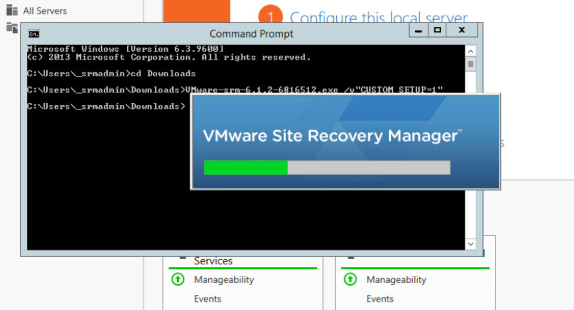
4. Accept the end user license agreement.
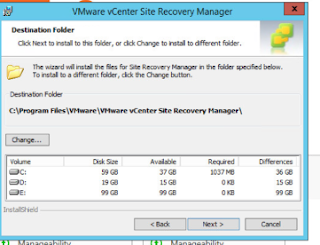
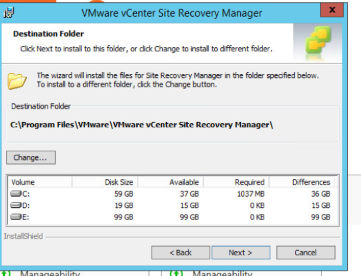
5. Select your Installation folder.
5. Select your Installation folder.
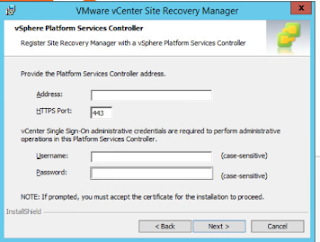
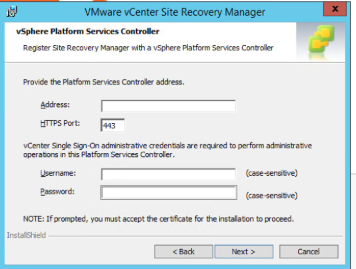
6. Enter your platform service controller details and sso details.
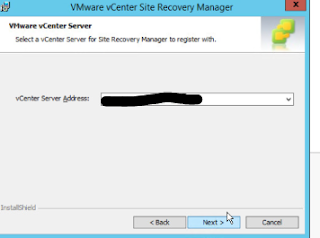
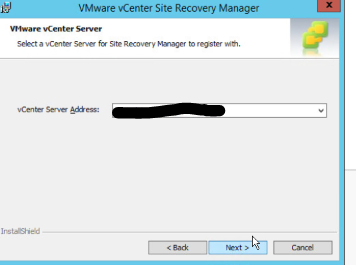
7. In next window it will automatically pull vcenter associated with it.
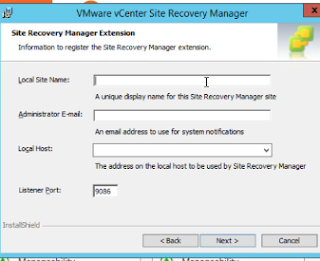
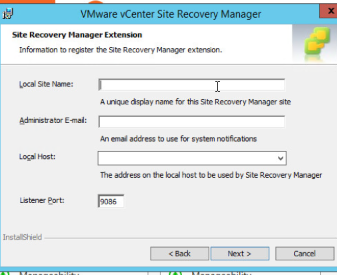
8. Enter your local site name ( i prefer to give vcenter name) and email address for sending notifications. In drop down menu you will be able to see SRM server IP.
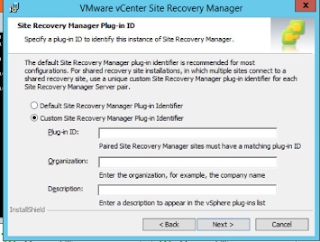
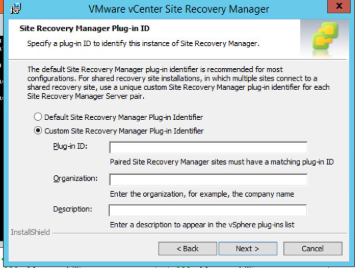
9. In next window, choose custom SRM plug-in identifier and enter plug-in ID. (some meaningful name that is useful to identify pair)
10. Next select embedded database or external database as per your environment. If you select external one, you need enter database details along with credentials.
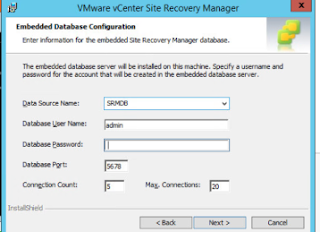
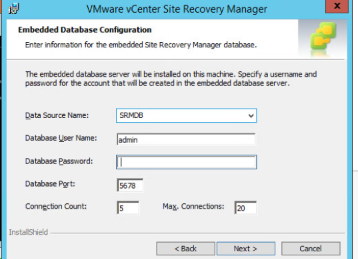
11. If you selected embedded database, enter data source name and credentials to create database.
11. If you selected embedded database, enter data source name and credentials to create database.
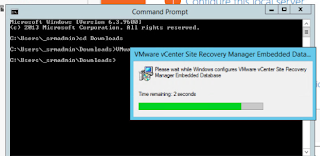
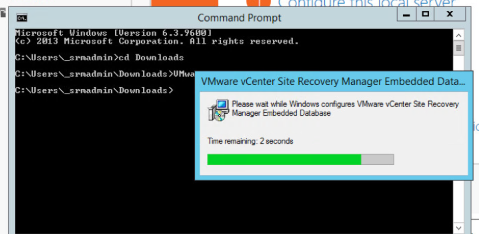
12. Now your installation will start.
13. Post installation login to your vsphere client and check if you can see SRM plugin. if you already logged in, logout and login once again.
14. Repeat the steps 1-13 in another site, in step-9 make sure to enter same plugin ID. Then only you will be able to pair sites without any issue.