In this post, we are going to see how to install VCSA 6.5. Please go through the vmware release notes to make sure you are aware of known issues with this version.
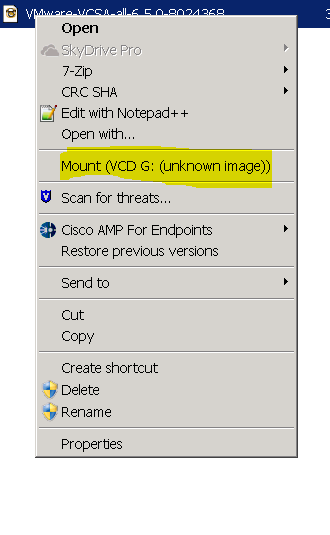
2.Go to Mounted drive and you can find installer file under vcsa-ui-installer folder. select the folder depends on your platform and run installer. below window will open up.
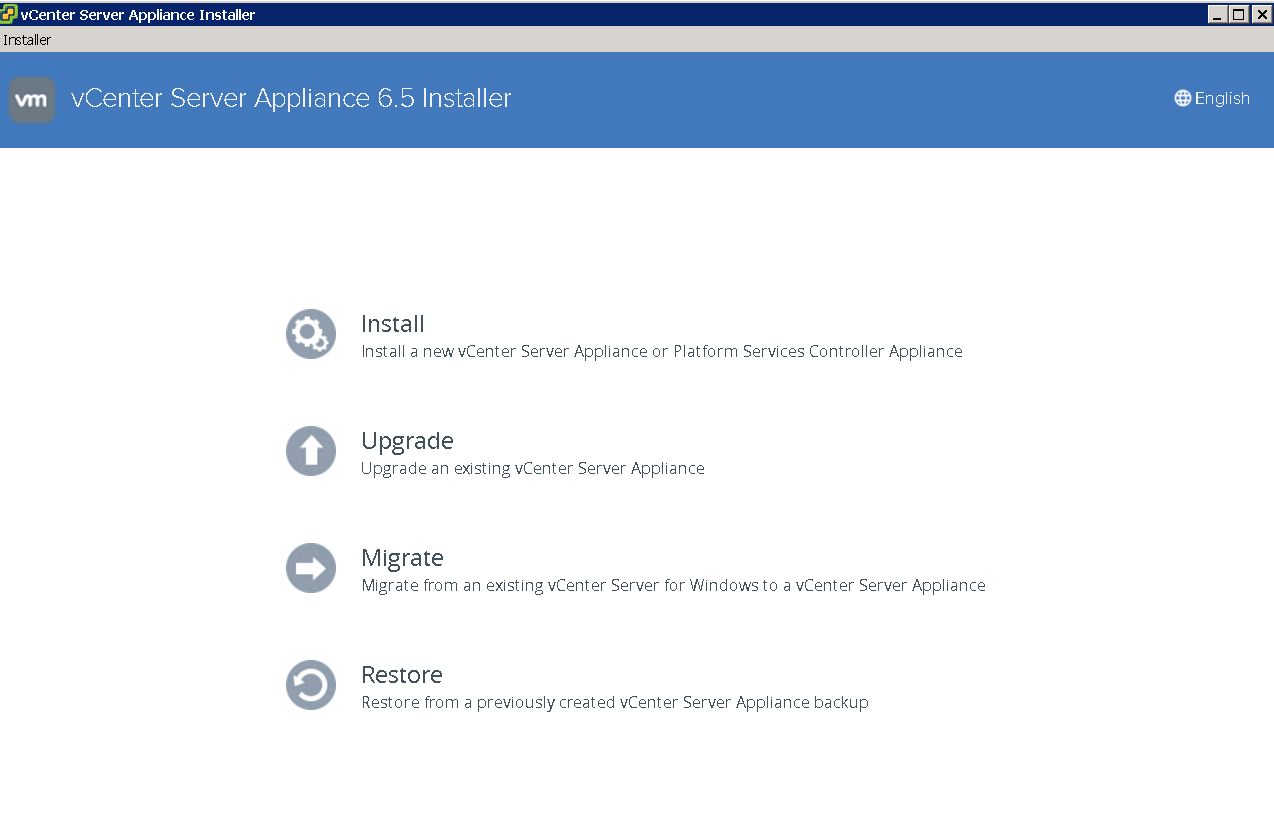
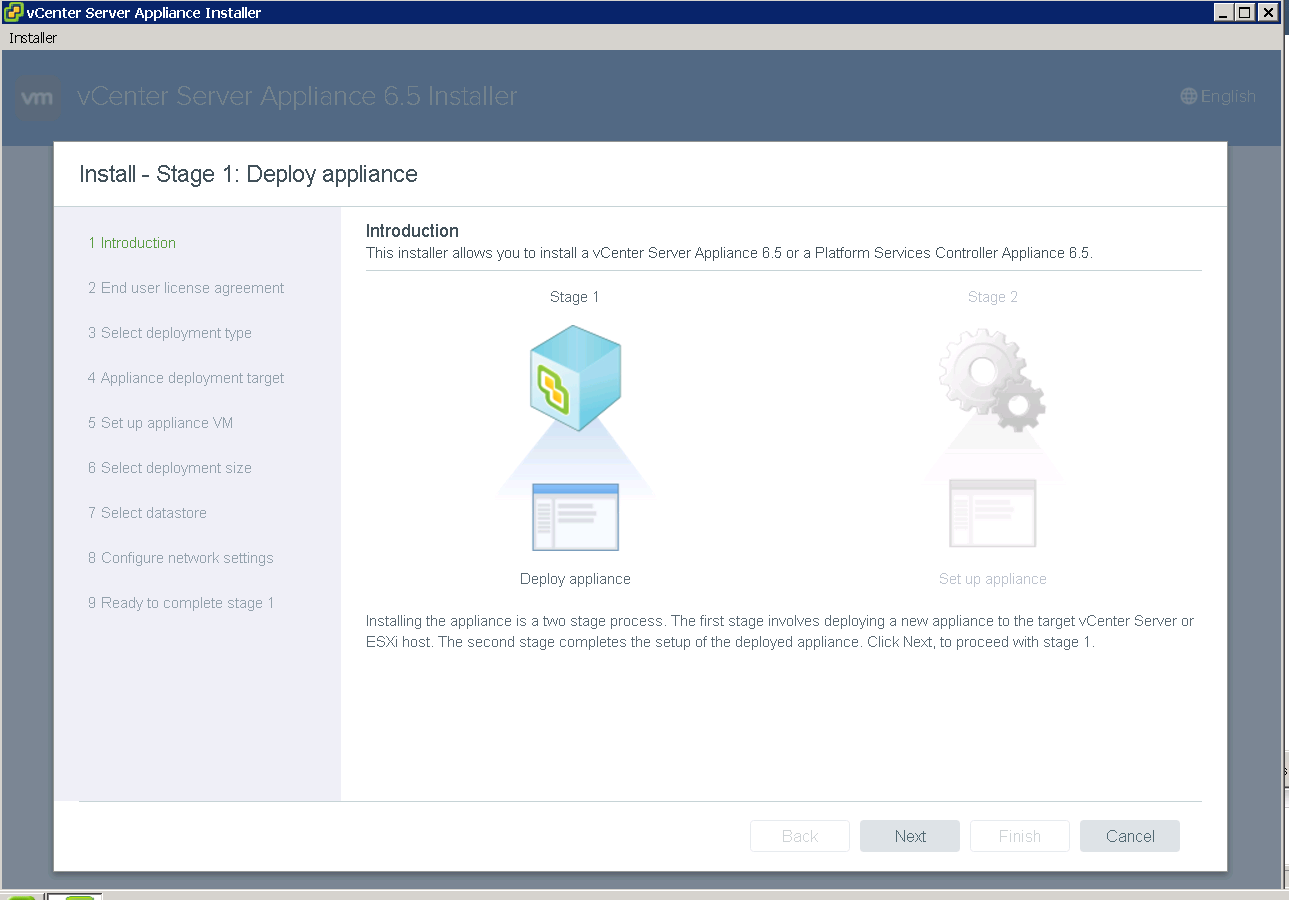
3. Select install and say next, Accept end user license agreement.
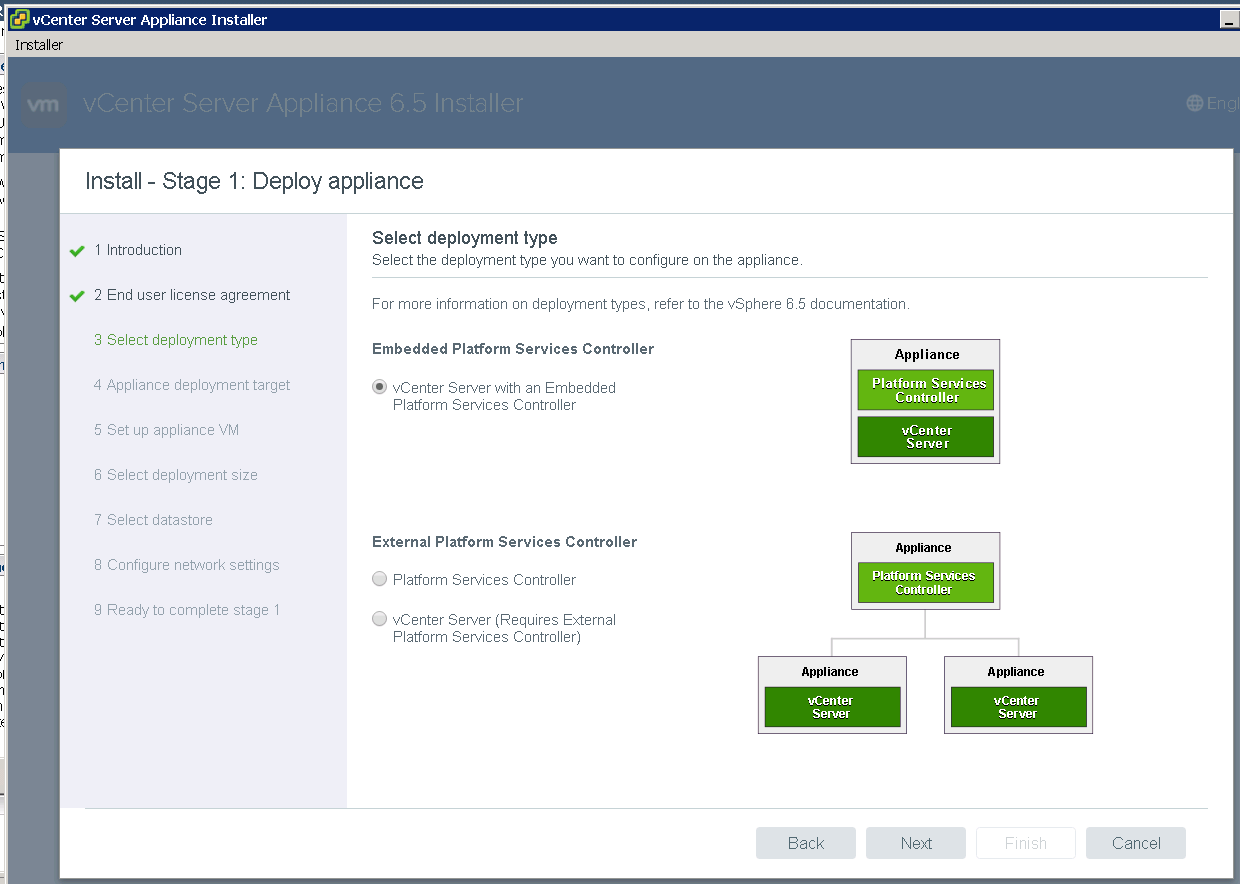
4. Select any one of below option. If you want to deploy VCSA with embedded PSC select below option. If not first you need to deploy PSC and then again deploy VCSA.
5. Enter your Esxi or vcenter details where the new appliance is going to run. if your network is going to be DVS, please enter target vcenter details. If you enter Esxi details it will only show standard port groups. Accept the certificate warning.
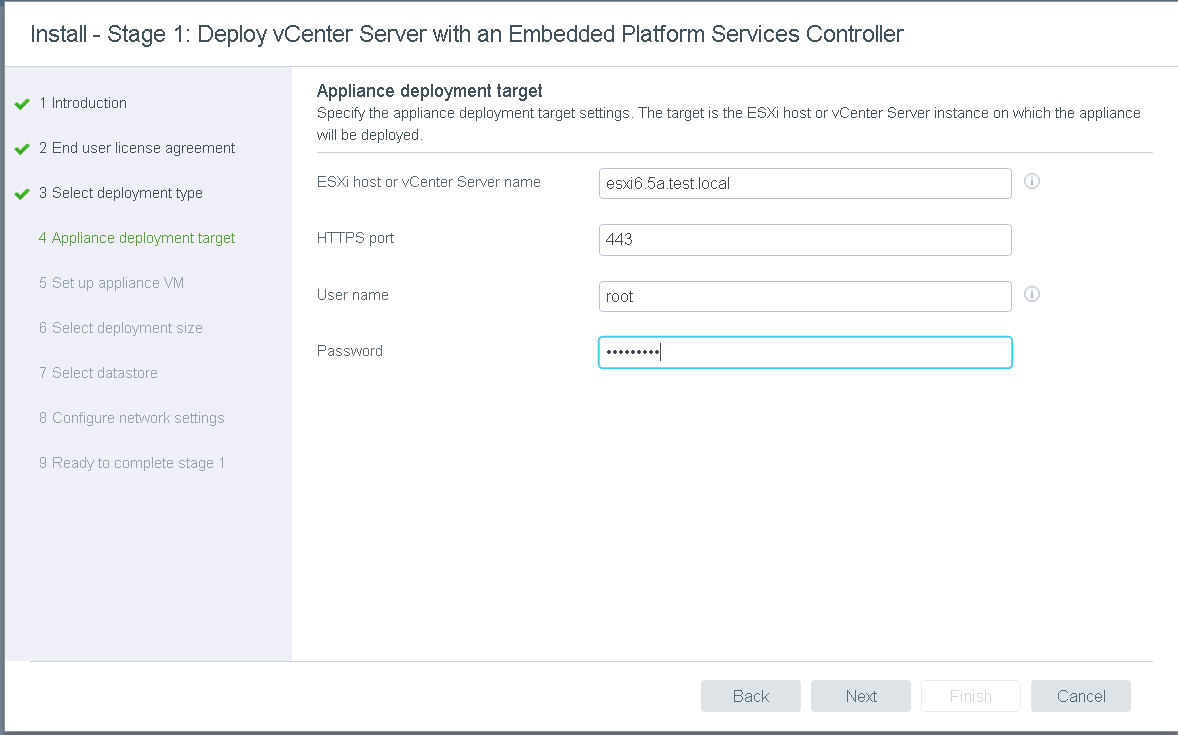
6. Enter the name of appliance and root password.

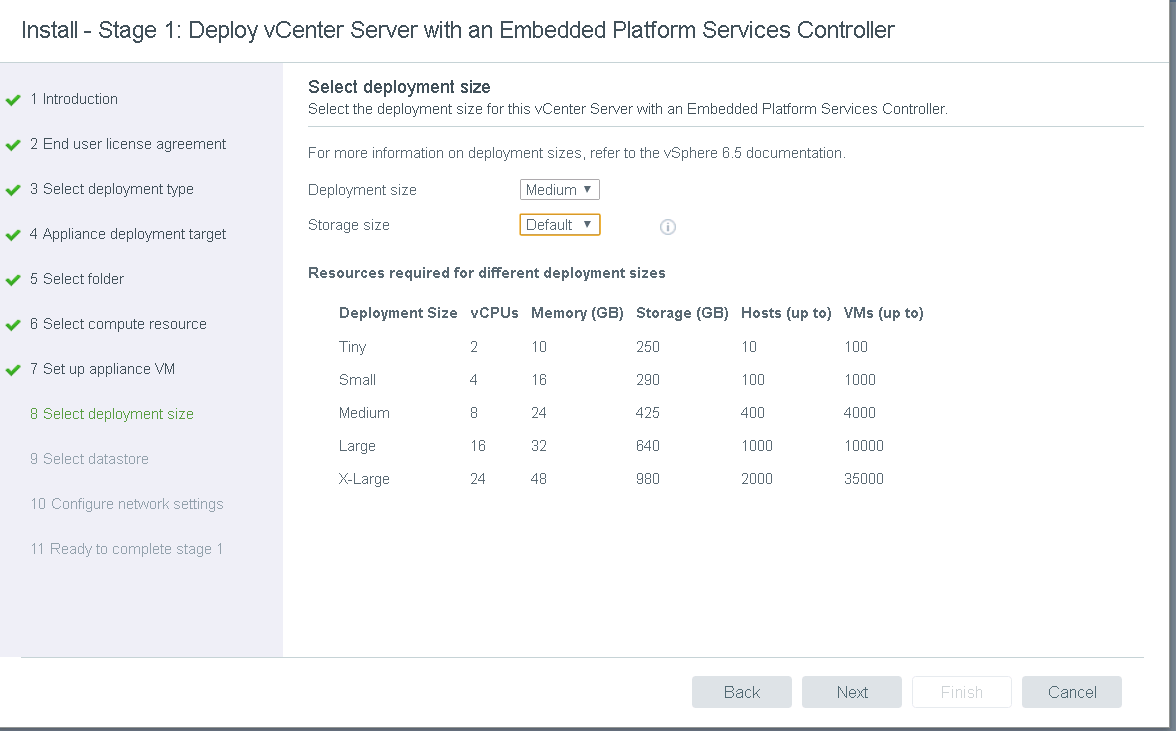
7. Select size of your VCSA, depending on how big your environment is. consider future growth as well.
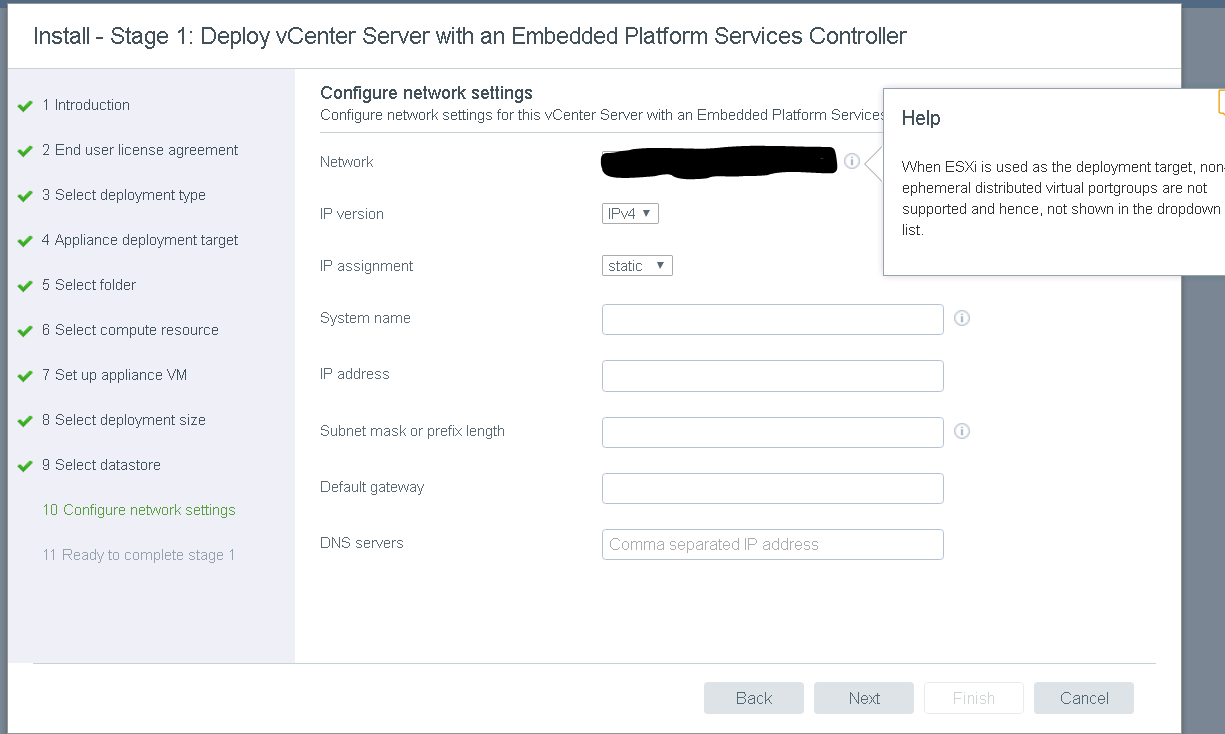
8. Configure network settings for VCSA. Pay attention to help message , If you have entered Esxi details in step-5.
9. Your VCSA with embedded PSC is ready now.